
HE Engine user guide
The Homomorphic Encryption Engine (HE Engine) lets you run arithmetic on numbers it never sees. Your device encrypts them, the engine computes on the encrypted values, and only your device can decrypt the result. This guide is for the people who use an instance; whoever runs it (the operator) will find setup in Self-hosting.
This guide covers the web dashboard and the API. For how the system works and what it
does and does not protect, see How the HE Engine works
and SECURITY.md; the exact cryptographic parameters are in
parameters.md.
1. Your keys
The HE Engine uses three keys, all generated on your device:
| Key | Size | Where it lives | What it can do |
|---|---|---|---|
| Client key (secret) | ~48 KB | Only on your device (in the dashboard, this browser's storage, encrypted with your passphrase) | Encrypt and decrypt |
| Server key (evaluation key) | ~60 MB | Uploaded to the server | Compute on your ciphertexts, but not decrypt them |
| Public key | ~33 KB | Uploaded to the server, and kept on your device | Encrypt, and let the server check proofs; not decrypt |
The server never receives your client key, so it cannot read your data.
Your passphrase protects your client key. In the dashboard the key is stored only in the browser you generated it in, encrypted with a passphrase you choose. You enter the passphrase once per tab to unlock the key. Nobody can reset a forgotten passphrase, not even the operator.
Back up your key. On the Keys page, Export backup downloads the encrypted key as a file. With that file and the passphrase you can Import backup in another browser or after clearing this one. Without either, the key and everything encrypted under it is lost.
Each account can register up to 2 server keys (the operator can change this).
2. Using the dashboard
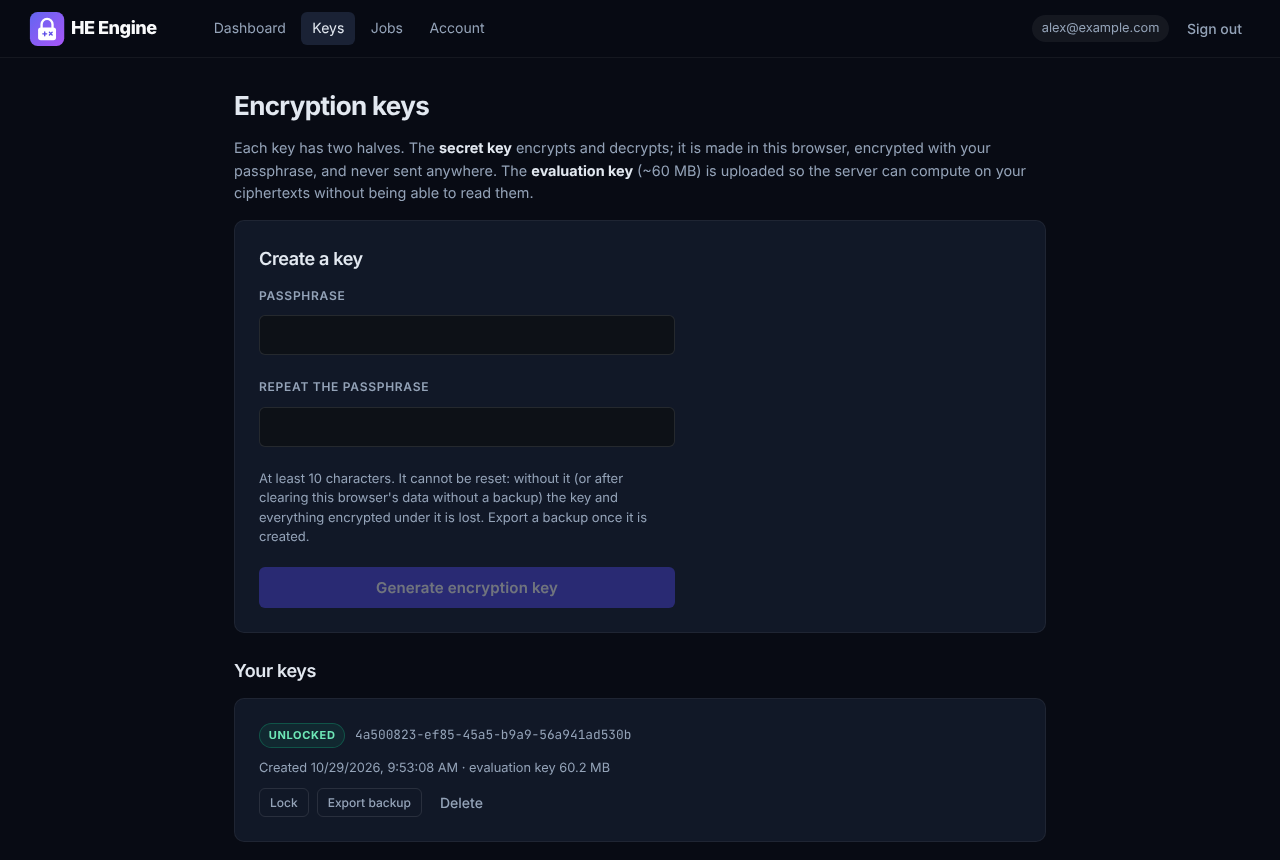
- Create an account and verify your email address through the link sent to you.
- Sign in.
- Create a key. On Keys, choose a passphrase (at least 10 characters), enter it twice and choose Generate encryption key. Your browser creates the key pair in a few seconds, then uploads the ~60 MB server key. Choose Export backup and keep the file somewhere safe. On the Dashboard the key now shows Ready. After a reload, enter the passphrase there to unlock it again.
- Compute. Choose a type and an operation, enter the values, and choose Run. The dashboard shows each step:
- Encrypting in your browser (or Encrypting and proving, with proofs)
- Sending ciphertexts (two 16-bit values are ~260 KB in total)
- Server computing on encrypted data
- Decrypting in your browser
- Read the result. The result is decrypted in your browser and compared with the value the dashboard expected. Matches expected confirms the round trip.

Types. Unsigned (u8, u16, u32, u64) or signed (i8 … i64) integers of
8 to 64 bits. Add, subtract and multiply wrap around: in u16, 300 × 300 = 90000
wraps to 24464 and 3 − 10 to 65529; in i8, 100 + 100 wraps to −56. Larger types
take longer: a 64-bit multiplication takes seconds.
Operations. Add, Subtract, Multiply, Min, Max; the comparisons Equal, Not equal, Less, Less or equal, Greater, Greater or equal, whose result is an encrypted true or false; and Sum, which adds 2 to 16 values entered separated by commas.
Expressions. Choose Expression to run several operations in one job: type
an expression such as (a + b) * 3 < c ? a : b and the values for its inputs (a,
b, c, …, separated by commas). The dashboard checks the expression as you type
and shows the expected result; the server evaluates every step without decrypting
anything. Numbers written in the expression are sent unencrypted. Two more things
an expression can do:
- Lookup tables. lookup(a, [1, 4, 9, 16]) gives the entry at position a
(counting from 0), and lookup(a, [-1: 10, 5: 50], 0) the value for key a, or
the last argument (0 if left out) when a is not in the table. The server sees
the table but not which entry was used.
- Several results. Separate expressions with commas, e.g. min(a, b), max(a, b);
the results are shown in the same order.
Unencrypted operands. Send B unencrypted sends value B as a plain number. That is faster, but the server sees B (never A, nor the result).
Proven inputs. Prove the inputs are well-formed encryptions attaches a zero-knowledge proof to the inputs, which the server checks before computing. It takes about a second longer. Keys created before HE Engine 0.5 cannot do this: create a new key to use it.
Past jobs. Jobs lists your computations, newest first. Completed results can be decrypted there while their key is unlocked; finished jobs are deleted after a few days.
Keys from another browser. The Keys page marks keys whose client key is not in this browser as Not in this browser. Use Import backup with the exported file and its passphrase, or delete the key if you need room for a new one.
3. Using the API
To encrypt on your own systems, use the Rust SDK or the heaas command-line tool.
They generate your keys locally and only ever send the evaluation key and
ciphertexts:
export HEAAS_URL=https://<your HE Engine instance> HEAAS_EMAIL=you@example.com
heaas keygen         # heaas-client.key is your secret key: keep it (and a backup) safe
heaas upload-key     # uploads the server and public keys; prints the key id
heaas run --key-id <key id> --op multiply 300 300    # prints 24464
heaas run --key-id <key id> --op gt --type i64 -- -1 -2   # prints true
From other languages, call the HTTP API directly. Using the API covers authentication, every endpoint, errors, quotas and full request examples.
4. Troubleshooting
| What you see | Why | What to do |
|---|---|---|
| "In-browser encryption needs a cross-origin isolated page" | The browser or the deployment does not allow SharedArrayBuffer, which TFHE's WebAssembly needs |
Use a current Chrome, Edge, Firefox or Safari. Operators: serve the frontend with the COOP/COEP headers described in Self-hosting |
409 "You already have 2 server keys" |
Your account has reached its key limit | Delete a key you no longer use |
400 "Not a compressed server key for this server's parameters" |
The key was made with different parameters or a different TFHE-rs release | Generate it with TFHE-rs 1.8.2 and ConfigBuilder::default() |
413 Payload Too Large |
The upload is over the size limit | Upload only the compressed server key, never the full server key |
Job failed: "Input 1 is not a valid FheUint16 ciphertext for this key" |
The input is not of the job's integer_type, is corrupted, or was made with other parameters |
Encrypt as that type with the client key that belongs to key_id and safe_serialize the result |
400 "… takes exactly 2 encrypted inputs" or "Invalid scalar" |
The number of inputs does not fit the operation, or a plain operand is outside the type's range | Binary operations take two inputs, or one and a scalar; sum takes 2 to 16 |
400 "Invalid program: Step 2 (divide): cannot divide by the constant 0" (or another step error) |
The program or expression does not fit the type or its inputs | Fix the step named; in the dashboard the error shows under the expression as you type |
400 "Job 3: …" on a batch |
One job of the batch would be refused on its own; nothing was queued | Fix that job and send the batch again |
422 "Upload this key's public key …" |
Proven inputs were sent for a key whose public key the server does not have | Upload it (PUT /api/v1/keys/{id}/public-key, or heaas upload-key) |
Job failed: "The proof of the inputs does not verify for this key" |
The list was proven for another key id, with another public key than the one uploaded, or was altered | Prove with the public key you uploaded for that key, against the server's current CRS |
404 "Server key not found" |
The key id is wrong, deleted, or belongs to another account | List your keys with GET /api/v1/keys (or heaas keys) |
429 "Too many sign-in attempts for this account" |
Several failed sign-ins in a short time | Wait the Retry-After seconds, or reset your password |
| Verification or reset link says "Invalid or expired" | Links work once; verification links last 24 hours and reset links 1 hour (unless the operator changed this; the email says how long) | Request a new one from the sign-in page |
| "For your security, sign in again" when deleting a Google/GitHub account | Deleting an account without a password needs a fresh sign-in | Sign out, sign in again, then delete within 5 minutes |
429 "Daily compute quota … reached" |
You submitted the maximum number of jobs today | Wait until midnight UTC (Retry-After says how long) |
429 "You have N jobs waiting or running" |
Too many of your jobs are unfinished | Wait for some to finish, then resubmit |
503 "The job queue is full" |
The server is busy | Retry after the Retry-After seconds |
422 "This Idempotency-Key was already used for a different request" |
You reused a key for a new request | Use a new key for each new job |
409 on …/result |
The job has not completed | Poll the job until status is completed |
Job failed: "Timed out after N seconds" |
The computation took longer than the server allows | Contact the operator |
| The decrypted value is meaningless | You decrypted with a different client key than the one the inputs were encrypted with | Use the client key that matches the job's key_id |
5. FAQ
Can the server, or whoever runs it, read my numbers? No. It has only your server and public keys, which cannot decrypt. It does see metadata: when you submit jobs, which operation and type each uses and how many you run, and any operand you choose to send unencrypted.
Can I check that the server computed correctly? Not cryptographically: TFHE does not prove correctness. The dashboard compares each result with the value it expected, which catches errors for the values you test.
What if I lose my client key or forget its passphrase? Import your backup file if you have one (it needs the same passphrase). Otherwise nothing encrypted under the key can be decrypted any more, by you or anyone else. Generate a new key; the old server key can be deleted.
Which numbers are supported? Signed and unsigned integers of 8, 16, 32 and 64 bits, with add, subtract, multiply (wrapping), min, max, the six comparisons and sums of up to 16 values.